
LirayBot Tam Özellik Kılavuzu
Program içindeki 40'tan fazla ayarın eksiksiz, resimli ve açıklamalı tam listesi.
Kurulum
Sunucu
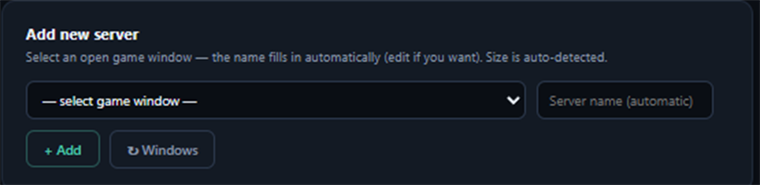
- Oyun penceresi adı: Botun bağlanacağı oyunun adını (Örn: Gameforge, Astra2) belirler.
- Pencereleri Yenile: Arka plandaki uygun oyun pencerelerini tarar ve bota bağlar.
- Profili Sıfırla: Tüm HP, metin ve harita çizimlerinizi (kalibrasyonları) siler, temiz başlar.
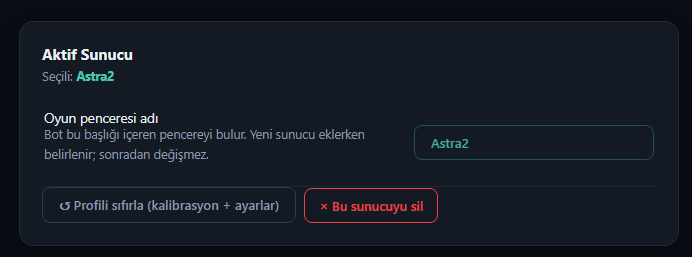
- WGC Aktif: Oyun tam ekransa veya botta siyah ekran veriyorsa bu mod görüntüyü kurtarır.
- Çift Client: 2. Pencereyi de seçtiğinizde bot iki karakteri alt-tab yapmadan aynı anda oynar.
- Oto Başlat:
oto_baslat_aktifayarı ile bot açılır açılmaz farma başlar.
İksir & Ölüm
Can (HP) ve Mana (SP) için ayrı ayrı sınır belirleyebilirsiniz.
- HP Eşiği ve Tuşu: HP %60 altına inince 1 tuşuna seri basar.
- SP Eşiği ve Tuşu: SP %40 altına inince 2 tuşuna seri basar (Özellikle Şamanlar için).
Karakter ölürse belirlediğiniz saniye (Örn: 10sn) kadar bekler ve "Burada Başla" seçeneğine tıklar. Sürekli ölüp durmasını engellemek için Minimum HP Limitini %50 yapabilirsiniz. Böylece canı yarılanmadan tekrar canlanmaz.
Klavye Sürücüsü
Uriel, Svside gibi sistemler sanal tıklamaları engellediğinde buradan donanım farelerini taklit eden Mouse_Event veya SendMessage metotlarını seçebilirsiniz.
Proxy (Tüm PC)
Çoklu hesap kasanların IP ban yememesi için IPv4 (IP:Port) destekli Proxy tünellemesi yapar.
HWID Spoofer
Ana kartınızın (VolumeID vb.) seri numarasını geçici olarak değiştirir. Cihaz banı yediğiniz sunuculara sanki yeni bir bilgisayar almışsınız gibi giriş yapabilirsiniz.
Metin (Tüm Özellikler)
Hedef Kalibrasyonu (ÖNEMLİ)
Bot bir hedefin öldüğünü ancak kırmızı can barından anlar.
- Metne/Canavara bir kere tıklayın. (Can barı yukarıda belirecek)
- HP Bar Seç dedikten sonra barın TAM ORTASINDAN ufak bir kırmızı kutu çizin. Siyah çerçeveyi asla almayın.


Metin İsmi Seç diyip sadece "Metin" yazısının etrafına kutu çizin.

Karakter & Yetenek (Skill)
- Periyodik Basım:
skill_periyodik_basaktif edilip (Örn: 120 sn) tuşlar (F1, F2) girildiğinde bot bu skilleri aralıksız süre bitiminde basar. (Hava Kılıcı, Güçlü Beden) - Can/Düşman Eşiği: Etrafta düşman görünce veya can azalınca basılacak ekstra defansif yetenekleri ayarlayabilirsiniz.
Binek Sistemi
Özellikle Savaşçı iseniz metnin yanına gidince attan/binekten inip metni düz kesmek hasarı artırır.
- Cooldown (Bekleme): Binekten inip binme gecikmesi (Örn: 1.5 sn).
- Minimum Can Koruması: Canınız binek üzerindeyken %30 altına inerse, bot attan inmeyip defansif kalabilir.
Tıklama Ayarları
- Tıklama Sapması: Bot isme değil gövdeye vurması için Y-ekseninde kaç piksel aşağı inecek (Örn: 35-55 arası deneyin).
- Kamera Tarama: Hedef bulamayınca botun etrafında dönmesi (Mouse sağ tık ile) için
kamera_tara_aktifseçilir. - Sıralı Kesim: Ekranda 5 metin varsa
sirali_metin_aktifbotun aralarında organize geçiş yapmasını sağlar.
Toplama & Ekstra Tuş
Hedef ölünce minimum ve maksimum saniye (Örn: 2-4 sn) girerek rastgele sürelerle "Z" tuşuna basılı tutmasını sağlayın.
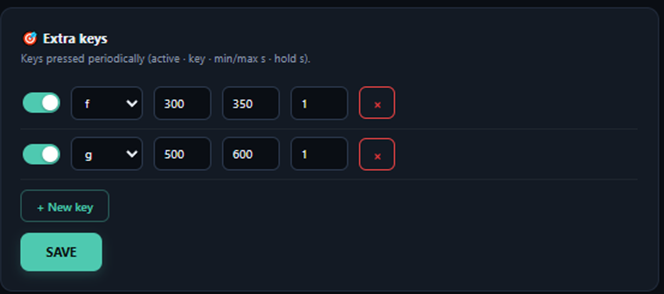
Ekstra Tuşlar: Pelerin (Cesaret Pelerini) basmak veya makro pet beslemek için belirlediğiniz tuşları kaç saniyede bir basacağını eklersiniz.
Gelişmiş Ayarlar
Harita & Alan Sınırı
Botun dağlara kaçmasını engeller. Kasmak istediğiniz yere gidin, Merkez Belirle butonuna basıp yarıçapı 2000 girin. Bot bu görünmez çemberden dışarı asla çıkmaz.
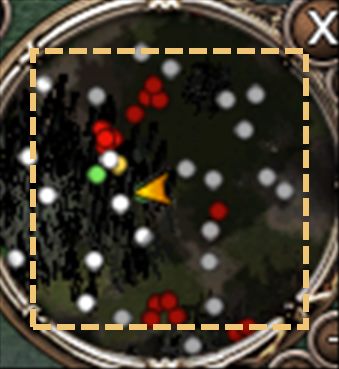
Kamerada metin yoksa haritayı okuyarak oraya yürür.
- Bölge Seç diyip haritanın yuvarlak İÇ kısmını çizin. Altın süsleri asla almayın.
- Renk Seç ile haritadaki noktanın rengini tanıtın. Toleransı artırırsanız daha kolay bulur.
İnsancıl Davranışlar (Anti-Ban)
- Mola Modu: Örneğin 45-60 dakikada bir, 3 dakika oyunu durdurur. Gerçek bir oyuncunun lavaboya gitmesini simüle eder.
- Tıklama Sapması: Hep aynı piksele tıklamak ban sebebidir. 5 piksellik bir sapma verirseniz hedefi her seferinde milimetrik olarak farklı bir noktadan vurur.
- Reaksiyon Gecikmesi: Metin ekranda belirir belirmez (0 ms) değil, 0.4 ile 0.8 saniye arasında insansı bir tepkiyle tıklar.
Takılma (Anti-Stuck) & Reconnect
- Savaş Zaman Aşımı (Timeout): Bot 20 saniyedir metni kesemiyorsa (can inmiyorsa) metnin kayanın içinde olduğunu anlar, geriye koşup hedefi bırakır.
- Oto Giriş (Reconnect): Oyundan düşerseniz CH ekranını Enter (Login tuşu) ile geçerek oyunu eski haline getirir.
reconnect_adim_bekleme_snile oyunun yüklenme yavaşlığına göre bekleme verebilirsiniz.
Captcha & Mesaj
- Captcha Çözücü: Uriel/Svside doğrulama pencerelerini algılar ve otomatik sayıları girer.
- Oto Cevap: PM atıp sizi yoklayanlara rastgele (Örn: "kardeş kasma", "dolu burası") mesajlar atar.
Otomatik Satış
Envanter dolduğunda (veya ayarlanan dakikada bir) şehre veya markete gidip çerçöp itemleri satması için, oyununuzdaki satış tuşu makrosuna otomatik olarak basar.
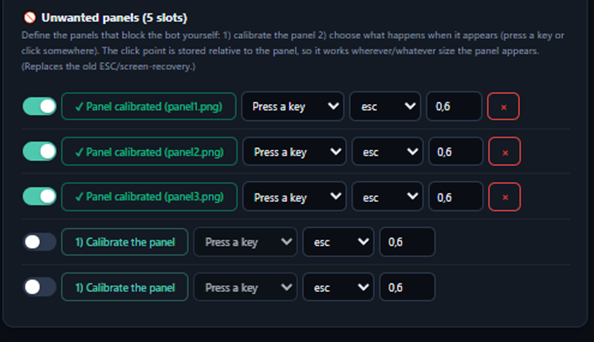
Ekran Kuralları (İstenmeyen Paneller)
Oyun içinde Görev Kağıdı veya Envanter sürekli açıksa, metin bunların arkasına geçtiğinde bot yanlışlıkla iteminize tıklar.
İstenmeyen Panel Ekle diyerek bu kısımlara kırmızı kutu çizerseniz, bot oranın arkasında hedef görse bile tıklamayacaktır.
İzleme (Loglar)
Botunuzun "beyni" burasıdır. Hatalarınızı bu logları okuyarak çözebilirsiniz.
- "Savaş zaman aşımına uğradı" -> Metin bir yere sıkışmıştır (Anti-Stuck devreye girdi).
- "HP barı bekleniyor..." -> Can barını yanlış çizmişsiniz, bot kırmızı alanı göremiyor demektir.
